Designing a Widget App for a Phone That Folds
One home screen widget has to look native on both screens of a Galaxy Z Fold. Here's what I measured building Crease, and why its labels are off by default.
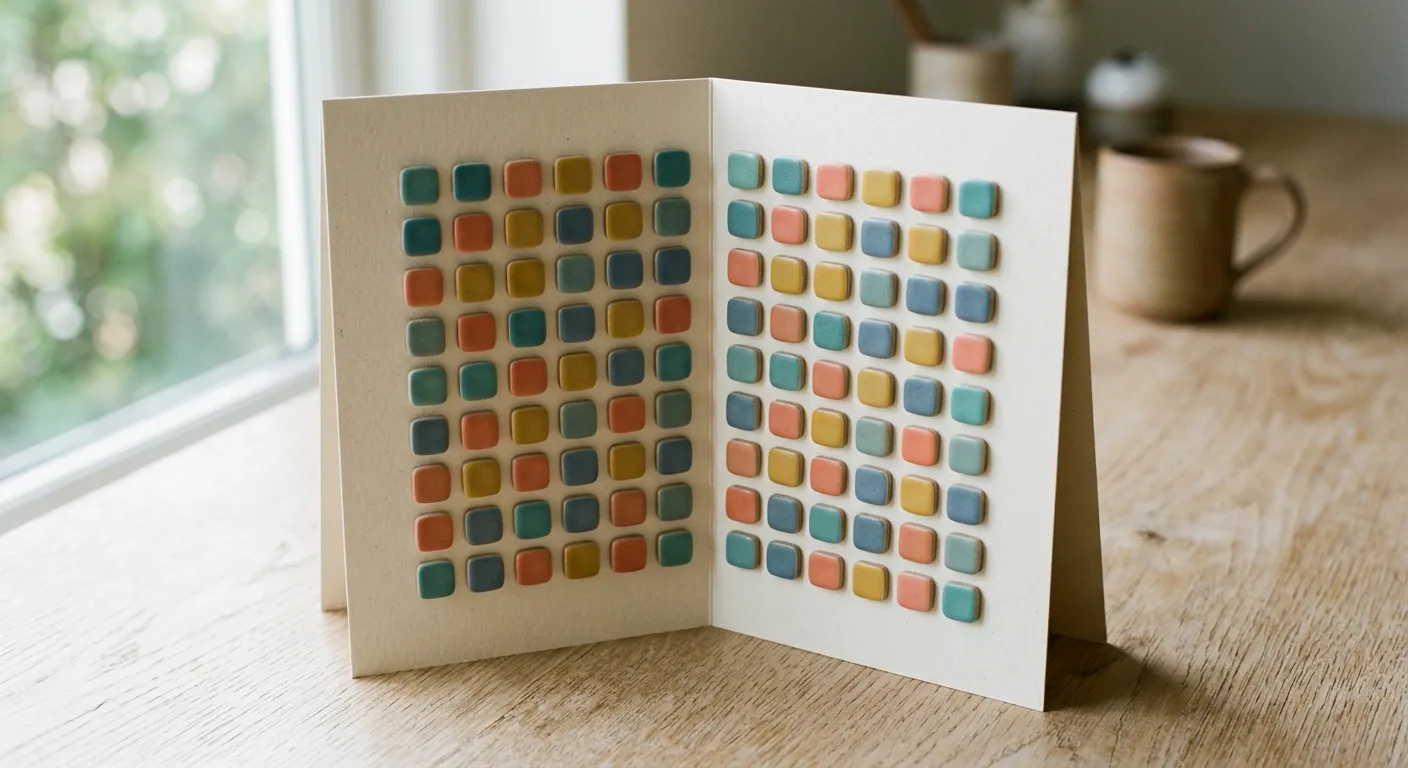
For the last few weeks I've been building Crease, an Android app that turns a home screen widget into a folder. You pick an image for the widget, tap it, and a full-screen panel opens with your apps. It's in testing on Google Play right now.
I built it for my own phone, a Galaxy Z Fold. That turned out to be the hard part. A widget on a foldable doesn't live on one screen. It lives on two, and they aren't the same shape.
One Widget, Two Screens
On my Fold, the cover screen mirrors the inner home screen. That means there's only one instance of the widget, and it shows on both. My first plan was to let you set up the cover and inner versions separately. That doesn't work in mirror mode, because there's nothing separate to set up.
What does work is listening for size changes. When I fold or unfold the phone, Samsung's launcher tells the widget its cell changed size. On my setup the inner screen gives it a cell of about 118 by 89 dp, landscape-ish. The cover gives it about 122 by 102. So the widget redraws itself for whichever screen it's on, and you never see the switch.
The Launcher Shrinks Your Widget After You Lay It Out
The first screenshots looked wrong. Everything was about two thirds of the size I'd asked for.
It turns out One UI scales widget content down after layout, by a ratio it passes along in the widget's options. On my grid that ratio is 0.667. If you ask for an 80 dp icon, you get roughly a 53 dp one. The fix is to ask for the size you want divided by that ratio.
The less obvious problem was how big a "native" icon is. My first guess sized the icon from the cell's width, and it matched Samsung's own icons on the cover screen. On the inner screen it came out too small. The width ratio drifts between the two screens. The height ratio doesn't: a native app icon is about 54% of the cell's height on both. Sizing from height got the widget to within a few pixels of the real icons next to it on both screens.
Why Labels Are Off by Default
I don't like labels on my home screen. The only reason I keep app labels on today is so I can tell my folders apart. Crease folders have their own images, so they don't need a name under them. Labels are off by default, and you can turn one on per folder.
Getting that right was trickier than flipping a setting. If the launcher is showing labels under your other apps and the widget isn't, an unlabeled icon centers itself in the whole cell. It ends up sitting lower than the labeled icons on either side, and the row looks broken.
So when the launcher's labels are on and yours is off, Crease keeps an invisible label in the layout. It takes up the same space a real label would, which holds the icon at the same height as its neighbors. When the launcher's labels are off too, the empty space goes away and the icon gets the full cell.
Labels also cost icon size. The cell height is fixed, so an icon plus a label line has to fit inside it. With a label on, the icon shrinks to make room, or the label gets clipped. That's one more reason no-label is the default: the icon gets to be full size.
Test on the Device
None of this is in Android's documentation. These option keys are Samsung's own, and the numbers came from putting a widget next to native icons on the phone, taking screenshots, and comparing pixels. I went through five prototypes before the sizes matched. If you're building for foldables, plan to test on the actual hardware, because the emulator won't show you any of this.
I wrote earlier about deciding between web and native. Crease is a case where native was the only option. A widget like this has to know things only the launcher can tell it. If you've got an Android app that needs to feel at home on a specific device, I build mobile apps and I'm happy to talk through it.
Working on something like this? See mobile app development or what XenneX has built.
Keep reading
- What Apple's Kids Category Kept Out of PlaySoriPlaySori went to App Review in the Kids Category this week. That meant cutting my purchase SDK and crash reporting, and building a few things myself.
- Not Everything Runs on AWS. Here's What Doesn't.AWS is my default, but my staging servers run on a Mac mini and Game Night's API runs on Cloudflare Workers. Here's what lives off AWS and why it's there.
- The Architecture Decision That Aged WellWe've written honestly about the calls that didn't hold up. This is the companion piece: the decision we made early that turned out right, and why it worked when so many early bets don't.